Free Online PDF Tools: The Complete Guide to Every PDF Task
Merge, split, compress, convert, edit and secure PDFs with free online PDF tools — no installs, no watermarks. Find the right tool for every task.
Free Online PDF Tools: The Complete Guide to Every PDF Task
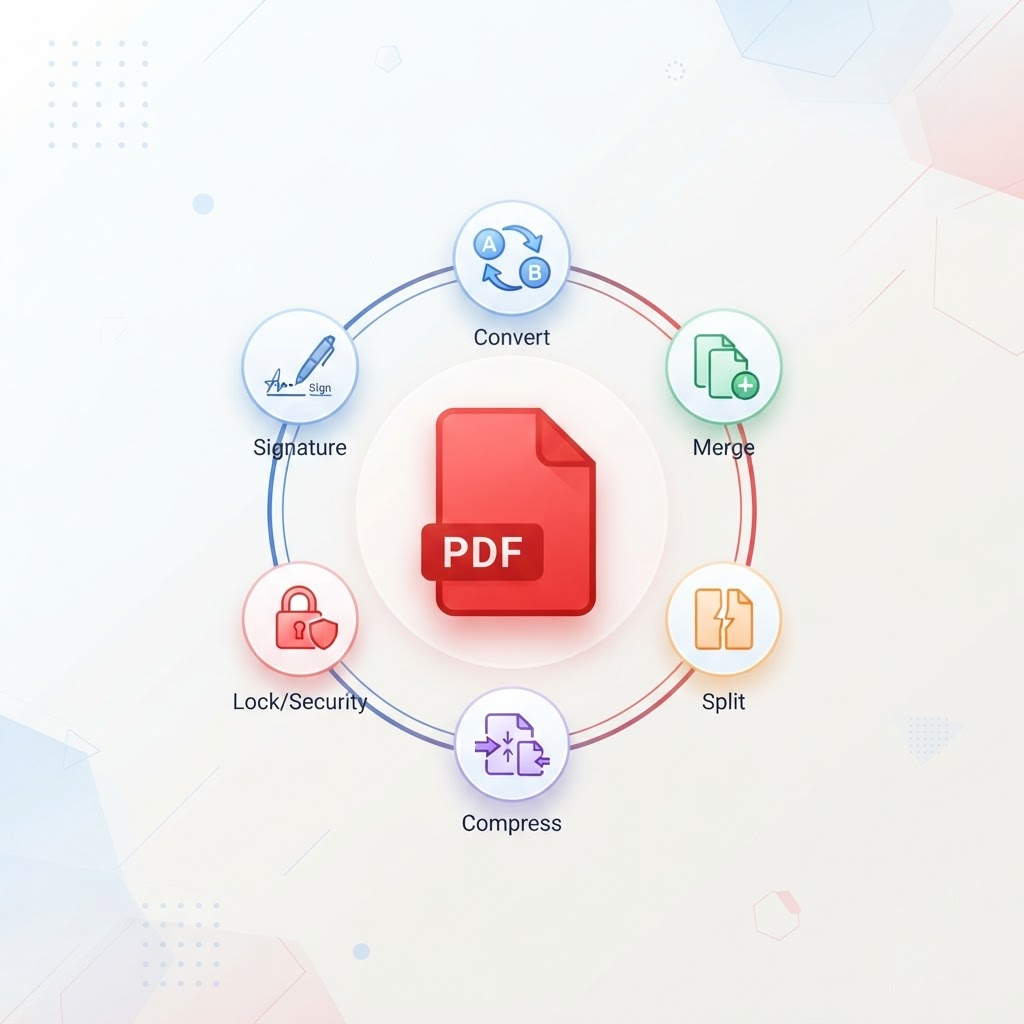
Free online PDF tools let you convert, merge, split, compress, edit, and secure PDF files straight from your browser — no software to install, no accounts to create, and no watermarks stamped across your work. Whether you need to turn a PDF into an editable Word document, squeeze a bulky report under an email size limit, or lock a contract with a password, there is a dedicated tool for the job. This pillar guide maps every PDF task to the right free tool on ShreePrati, explains how each one works, and shows you how to chain them together into a smooth workflow. You can jump straight in and browse every PDF tool, or read on for the complete walkthrough.
TL;DR — Key Takeaways
- Everything runs in your browser. Most tasks process files locally, so your documents are not uploaded to a server you cannot see. That makes browser-based PDF tools faster and far more private than emailing files to a converter.
- There is one tool per job. Converting, merging, compressing, editing, and securing are separate, focused tools — pick the one that matches your task instead of hunting through a bloated all-in-one app.
- Conversions go both ways. You can move a PDF to Word, Excel, PowerPoint, images, or plain text — and turn those formats back into a PDF.
- Page management is visual. Merge, split, organize, rotate, and crop tools show live page thumbnails so you can see exactly what you are changing.
- Security is built in. Add a password with Protect PDF, strip restrictions with Unlock PDF, and permanently remove sensitive text with Redact PDF.
- Nothing costs money and nothing is watermarked. Every tool linked here is free to use with no sign-up.
Table of Contents
- What are online PDF tools?
- Why use browser-based PDF tools?
- Converting PDFs to and from other formats
- Organizing pages: merge, split, and rearrange
- Compressing and optimizing PDFs
- Editing, annotating, and signing
- Securing and protecting PDFs
- Recovery and advanced tools: OCR, compare, scan, repair
- Which PDF tool should you use? A quick reference table
- Step-by-step: three common PDF workflows
- The 30-second tool picker (checklist)
- Best practices for working with PDFs
- Related guides
- Frequently asked questions
- Conclusion
What are online PDF tools?
Online PDF tools are small, single-purpose web apps that each perform one operation on a PDF file. The Portable Document Format (PDF) was created by Adobe in the 1990s so that a document would look identical on every screen and printer, regardless of the operating system, fonts, or software used to open it. That reliability is exactly why PDFs became the default format for invoices, contracts, résumés, government forms, e-books, and scanned paperwork.
The catch is that a PDF is designed to be final. It is not meant to be edited as easily as a word processor document, and that is where free online PDF tools come in. Instead of buying a heavyweight desktop suite, you open a web page, drop in your file, choose your options, and download the result. Because each tool does exactly one thing well, the interface stays simple and the output is predictable.
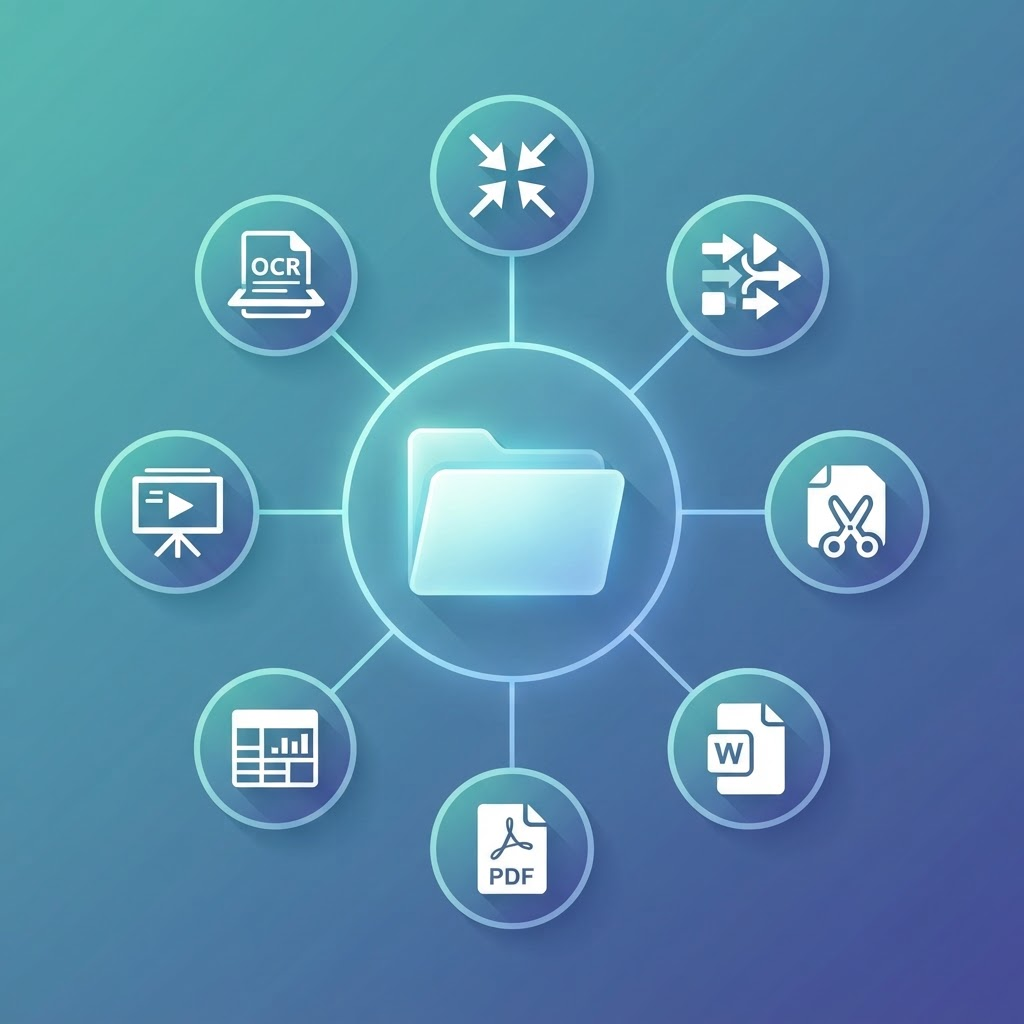
On ShreePrati, the full collection lives on the PDF tools hub, and the tools fall into six practical groups:
- Converters that move content between PDF and Word, Excel, PowerPoint, images, HTML, and text.
- Page organizers that merge, split, reorder, rotate, crop, and renumber pages.
- Compressors that shrink file size for email and uploads.
- Editors that let you annotate, watermark, fill forms, and sign.
- Security tools that add or remove passwords and permanently redact content.
- Recovery and utility tools that run OCR, compare versions, scan photos, and repair damaged files.
The rest of this guide walks through each group and points you to the exact tool for every task.
Why use browser-based PDF tools?
Not all PDF utilities are equal. The browser-based approach used across ShreePrati has a few concrete advantages worth understanding before you start.
Privacy by default
The single biggest reason to prefer a browser-based tool is privacy. Many PDF tasks — rotating a page, merging two files, adding a password — can be done entirely inside your browser using JavaScript, which means the file never leaves your device. When you compress a PDF or merge PDFs this way, there is no upload, no server-side copy, and no waiting in a processing queue. For anyone handling contracts, medical records, tax documents, or ID scans, that difference matters.
No installation, no updates, no cost
Desktop PDF suites are large, need regular updates, and often lock the useful features behind a subscription. A web tool loads in seconds, works the same on Windows, macOS, Linux, Chromebooks, and phones, and never nags you to upgrade. You can convert a PDF to Word on a public library computer just as easily as on your own laptop.
No watermarks, no page limits
Plenty of "free" converters quietly stamp a watermark on your output or cap you at a handful of pages before demanding payment. Every tool linked in this guide produces clean, unwatermarked files. That is a deliberate design choice, and it is the main reason people bookmark a tool and come back.
One tool, one job
A focused tool is easier to trust. When a page does exactly one thing — say, rotate a PDF — you can see at a glance what it will do to your file. That clarity is genuinely useful when you are working quickly.
Original data point: Across the six categories below, ShreePrati offers 35 distinct PDF-related tools. If you mapped every common PDF chore an office worker faces in a year — converting, combining, shrinking, signing, securing, and fixing files — you would find a dedicated tool for each one without ever installing software. That breadth is the whole point of a pillar page: one place to find the right tool instead of the biggest app.
Converting PDFs to and from other formats
Conversion is the most common reason people reach for a PDF tool. You either need to get out of a PDF to edit its contents, or get into a PDF to lock a document down for sharing. ShreePrati covers both directions.
PDF to editable documents
- Convert a PDF into an editable Word document. This is the tool people search for most. It rebuilds paragraphs, headings, and basic layout as a
.docxfile you can open in Microsoft Word, Google Docs, or LibreOffice. Use it when you have a report or letter as a PDF and need to change the wording. - Pull tables straight into Excel. If your PDF contains a table — a bank statement, a price list, a data export — this tool extracts the rows and columns into an editable
.xlsxworkbook so you can sort, total, and chart the numbers. - Rebuild a PDF as editable slides. Turn each page of a PDF into a PowerPoint slide, handy when someone sends you a deck as a PDF and you need to present or restyle it.
- Copy the plain text out of a PDF. When you only need the words — for quoting, translating, or feeding into another app — this strips away all formatting and gives you clean, selectable text.
PDF to images
- Save PDF pages as JPG images. Ideal for posting a page to social media, embedding it in a chat, or attaching a preview where a PDF would be awkward.
- Export lossless PNG pages. Choose PNG over JPG when you need crisp lines and text with no compression artifacts — for example, a diagram or a page you plan to print.
Other formats into a PDF
- Turn a Word file back into a polished PDF. The classic final step before sending a document: it freezes your layout so it looks the same for every recipient.
- Build a PDF from a spreadsheet. Convert an Excel or CSV file into a clean, paginated PDF for reports and records.
- Turn slides into a shareable PDF. Distribute a presentation that anyone can open without PowerPoint installed.
- Combine images into a single PDF. Merge photos or scanned pages into one document, with control over page size, orientation, margins, and fit. This is the fastest way to turn a folder of JPGs into a tidy multi-page file.
- Print a web page to PDF. Paste HTML markup and get a paginated PDF — useful for archiving a page or generating a printable receipt.
If your everyday work centers on Word files rather than PDFs, the companion pillar — how to work with Word documents online — covers .docx conversion and editing in more depth, including exporting Word pages straight to images.
Organizing pages: merge, split, and rearrange
Once a PDF exists, most of what you do to it is page management. These tools all show live thumbnails so you can see the result before you commit.
Combining and dividing
- Merge two or more PDFs into one. Drop in multiple files, drag them into the order you want, and download a single combined document. This is the go-to for assembling an application pack, a set of invoices, or chapters of a book.
- Split a long PDF into parts. Break a file into separate documents by custom page ranges, or explode every page into its own PDF and download the lot as a ZIP.
Reordering and trimming
- Reorder and delete pages visually. Drag pages into a new sequence, drop the ones you do not need, and rebuild a clean file — all with a thumbnail preview of every page.
- Pull out just the pages you need. Select specific pages and export them as a brand-new document. Perfect for lifting one section out of a long report.
- Delete unwanted pages. The inverse of extract: keep the document but strip out blank pages, cover sheets, or confidential appendices.
Orientation and layout
- Rotate sideways pages upright. Fix pages that were scanned or captured in the wrong orientation, one page or the whole document at a time.
- Trim the margins of every page. Crop away excess white space or a scanned border so the content fills the page.
- Stamp page numbers onto a PDF. Add consistent page numbering to a merged or reorganized document — essential once you have combined several files that each started at page one.
Compressing and optimizing PDFs
A PDF full of high-resolution images or scanned pages can easily balloon past the 10 MB or 25 MB limit that email providers impose. Compression fixes that.
- Shrink a PDF for email and uploads. Choose a compression level that balances file size against visual quality. A light setting keeps text razor-sharp for documents; a stronger setting dramatically reduces the size of image-heavy files. This is the tool to reach for when an upload form rejects your file for being too large.
- Compress mixed files in one place. If you are juggling both images and PDFs, this single tool handles both formats right in the browser, so you do not have to switch pages.
A useful habit: if your PDF is large because it contains photographs, compress the image first before you build the PDF, then compress the finished PDF as a second pass. Two gentle reductions usually look better than one aggressive one.
Editing, annotating, and signing
Editing a PDF is more limited than editing a word processor file — that is by design — but you can still do a great deal directly in the browser.
- Annotate and edit in the all-in-one editor. This is a full PDF workspace. You can organize, merge, split, rotate, crop, compress, convert, protect, redact, run OCR, draw, and add or edit text — then chain those edits onto a single working document and download when you are done. If you are not sure which single-purpose tool you need, start here and explore.
- Edit a Word document in the browser. For changes that are really about the text rather than the PDF wrapper, editing the underlying Word file is often easier. Do your edits, then export back to PDF.
- Add a text watermark to every page. Stamp "DRAFT", "CONFIDENTIAL", or your company name across a document before you share it.
- Add a visible signature. Place a drawn or typed signature onto a contract or form — the quickest way to return a signed document without printing and scanning.
- Fill interactive PDF forms. When a PDF has real form fields, this tool detects them and lets you type directly into the boxes, then flatten and download the completed form.
Securing and protecting PDFs
PDFs often carry sensitive information, and these three tools cover the security tasks people actually need.
- Add a password to open a PDF. Encrypt a document so only someone with the password can open it. Use this before emailing anything financial, legal, or personal.
- Remove owner restrictions. Some PDFs are not password-locked but still block printing, copying, or editing. If you have the right to use the file, this removes those owner/permission restrictions so you can work with it normally.
- Permanently black out sensitive data. This is the important one: true redaction removes the underlying text and image data, not just paints a black box over it. Never rely on drawing a rectangle in an editor — use a proper redaction tool so the hidden content cannot be copied out later.
A word of caution on redaction: a shocking number of leaked documents happen because someone drew a black shape over text that was still selectable underneath. Always verify by trying to select and copy the "hidden" area after redacting. With Redact PDF, the data is genuinely gone.
Recovery and advanced tools
These tools solve the trickier problems that come up less often but are lifesavers when they do.
- Make a scanned PDF searchable with OCR. Optical Character Recognition reads the text in a scanned image and turns it into real, selectable, searchable text layered onto the PDF. Without OCR, a scan is just a picture of words; with it, you can search, copy, and convert the content. This is the bridge between paper and editable data.
- Compare two versions of a PDF. Check two files by page count and text to spot what changed between drafts — handy for contracts and revised reports.
- Scan photos into a clean PDF. Capture or upload photos of physical pages and build them into a single, tidy PDF, turning your phone camera into a document scanner.
- Rebuild a corrupted PDF. When a file will not open or throws an error, this attempts to rebuild its internal structure so you can recover the contents.
Which PDF tool should you use?
Use this quick-reference table to jump straight to the right tool for your task.
| Your goal | Use this tool | Category |
|---|---|---|
| Edit the wording of a PDF | PDF to Word | Convert |
| Freeze a document's layout for sharing | Word to PDF | Convert |
| Get a table out of a PDF | PDF to Excel | Convert |
| Post a page as an image | PDF to JPG | Convert |
| Turn photos into a document | Image to PDF | Convert |
| Combine several PDFs | Merge PDF | Organize |
| Break up a long PDF | Split PDF | Organize |
| Reorder or delete pages | Organize PDF | Organize |
| Fix a sideways page | Rotate PDF | Organize |
| Add page numbers | Add Page Numbers | Organize |
| Get under an email size limit | Compress PDF | Optimize |
| Annotate, draw, or add text | Edit PDF | Edit |
| Sign a contract | Sign PDF | Edit |
| Fill in a form | Fill PDF Forms | Edit |
| Password-protect a file | Protect PDF | Secure |
| Remove copy/print restrictions | Unlock PDF | Secure |
| Permanently hide sensitive text | Redact PDF | Secure |
| Make a scan searchable | OCR PDF | Recover |
| Fix a file that won't open | Repair PDF | Recover |
Step-by-step: three common PDF workflows
Individual tools are powerful, but the real productivity comes from chaining them. Here are three workflows that cover the majority of everyday PDF work.
Workflow 1: Prepare a signed contract for email
- If the contract arrived as a scanned image, run OCR PDF first so the text is searchable.
- Open Fill PDF Forms (or Edit PDF) and complete any blanks.
- Add your signature with Sign PDF.
- Lock the finished file with Protect PDF so only the recipient's password opens it.
- If it is over the email limit, finish with Compress PDF.
Workflow 2: Turn a stack of receipts into one tidy file
- Photograph or scan each receipt, then use Scan to PDF or Image to PDF to build a multi-page document.
- Straighten any crooked pages with Rotate PDF and tidy the edges with Crop PDF.
- Drop out any blurry or duplicate pages using Remove PDF Pages.
- Add page numbers so the file is easy to reference.
- Compress the result for your records or expense system.
Workflow 3: Extract data from a report
- Use PDF to Excel to pull the tables into a spreadsheet, or PDF to Text for the narrative sections.
- If the report is a scan, run OCR PDF first so the text is machine-readable.
- Need just one section to share? Use Extract PDF Pages to lift out those pages as a standalone file.
- Comparing this quarter to last? Run both files through Compare PDF.
The 30-second tool picker
When you are in a hurry, run through this checklist and it will point you to the right group of tools:
- Do you need to change the content? → Convert out first (PDF to Word, PDF to Excel), edit, then convert back.
- Is the file the wrong size or shape? → Compress, Crop, or Rotate.
- Are you combining or separating documents? → Merge, Split, Extract, or Organize.
- Is this about who can see it? → Protect, Unlock, or Redact.
- Is the file broken or paper-based? → Repair, OCR, or Scan to PDF.
- Still not sure? → Open the all-in-one Edit PDF workspace and explore.
Best practices for working with PDFs
A few habits will save you time and prevent the most common mistakes.
- Keep an original. Before you compress, redact, or convert, save an untouched copy. These operations are one-way, and you cannot un-compress a file back to full quality.
- Redact, don't cover. As noted above, only a real redaction tool removes hidden data. A black rectangle in an editor does not.
- Compress last. Do all your editing, merging, and converting first, then compress once at the end so you are not repeatedly degrading quality.
- OCR before you convert a scan. A scanned PDF is just images until you run OCR. Converting it to Word or text without OCR gives you nothing usable.
- Match the image format to the job. Use PDF to PNG for sharp text and diagrams, and PDF to JPG for photos where a smaller file matters more than perfect edges. If you need to switch an exported image's format afterward, convert a JPG to PNG.
- Name files clearly. After merging or splitting, rename the output immediately — "report-final-signed.pdf" beats "merged(3).pdf" a week later.
Understanding the PDF format (and why it matters)
Knowing a little about how PDFs are built helps you pick the right tool and set the right expectations for the result.
Text PDFs vs. scanned PDFs
This is the single most important distinction. A text-based PDF was created digitally — exported from Word, a browser, or design software — and it stores real, selectable characters. A scanned PDF is really just a photograph of a page wrapped in a PDF container; there is no text inside it, only pixels.
That difference decides which tools will work well:
- On a text PDF, PDF to Word, PDF to Excel, and PDF to Text can extract accurate content because the characters already exist.
- On a scanned PDF, those same tools have nothing to read until you run OCR PDF to generate a text layer. Skip OCR and you will get an empty or garbled result.
If you are not sure which kind you have, open the PDF and try to select a sentence with your cursor. If the text highlights, it is a text PDF; if your selection draws a box over an image, it is a scan.
Vector vs. raster content
PDFs can hold both vector graphics (lines and text defined by math, which stay sharp at any zoom) and raster images (grids of pixels, like photos, which blur when enlarged). This is why exporting to PNG preserves crisp vector text and diagrams, while heavy compression mainly targets the raster images, where the biggest file-size savings live.
PDF/A and long-term archiving
There is a special flavour of PDF called PDF/A, designed for archiving. It embeds every font and forbids external dependencies so the file will still open and look correct decades from now. If you are storing legal or historical records, aim for a self-contained document: embed fonts, avoid links to external files, and keep an untouched master copy alongside any compressed version.
Tagged PDFs and structure
A tagged PDF carries an invisible outline of its structure — headings, paragraphs, tables, reading order — that screen readers use to navigate. Well-structured source documents produce well-tagged PDFs, which leads neatly into accessibility.
Making PDFs accessible
An accessible PDF is one that people using screen readers, magnifiers, or keyboard navigation can actually use. A few practical points:
- Start with a real text layer. A scanned PDF is invisible to a screen reader until you run OCR PDF. OCR is the first and most important accessibility step for any paper-based document.
- Preserve headings. When you build a PDF from a well-structured Word file via Word to PDF, the heading hierarchy carries over, giving assistive technology a map of the document.
- Add meaningful text, not just images. If you must share a page as a picture — for example a PDF exported to JPG — remember that the text inside becomes unreadable to a screen reader. Keep an accessible text version available too.
- Do not lock out assistive tech. Some permission restrictions block the content extraction that screen readers rely on. If you own a file that is over-restricted, remove the restrictions so it can be read aloud.
Accessibility is not an afterthought — it is often a legal requirement for public-facing documents, and it makes your files better for everyone.
Exporting Word pages as images
Sometimes you do not want a PDF at all — you want a picture of a document page to drop into a slide, a chat, or a web page. Two tools handle this directly from a Word file, without a PDF middle step:
- Convert a Word document into JPG images — one JPG per page, ideal for lightweight sharing and previews.
- Convert a Word document into PNG images — lossless PNGs for sharp text and screenshots you plan to reuse.
These pair naturally with the Word workflows in the Word documents pillar guide.
Troubleshooting common PDF problems
Most PDF headaches come down to a handful of recurring issues. Here is how to diagnose and fix them.
| Symptom | Likely cause | Fix |
|---|---|---|
| Converted PDF to Word but got gibberish or blanks | The PDF is a scan with no text layer | Run OCR PDF first, then convert |
| File is rejected as "too large" | Image-heavy pages | Compress the PDF; compress source images first |
| Pages appear sideways or upside down | Scanned in the wrong orientation | Rotate PDF, one page or all |
| Can't copy or print the file | Owner/permission restrictions | Unlock PDF if you own it |
| "Hidden" text is still selectable | Black box drawn over text, not redacted | Use Redact PDF to remove the data |
| PDF won't open at all | Corrupted or interrupted file | Repair PDF to rebuild it |
| Merged file restarts page numbers | Each source began at page one | Add page numbers after merging |
| Table imported as one messy column | Complex layout | Try PDF to Excel; clean up in the spreadsheet |
If a single tool does not fully solve the problem, remember you can always open the all-in-one Edit PDF workspace and chain several fixes onto one working document.
A quick PDF glossary
Bookmark-worthy definitions for the terms you will meet across these tools:
- OCR (Optical Character Recognition): technology that reads text out of an image so a scan becomes searchable and editable. See OCR PDF.
- Redaction: the permanent removal of content from a document, not merely hiding it. See Redact PDF.
- Compression: reducing file size by optimizing images and structure, with a trade-off against quality. See Compress PDF.
- Merge / Split: combining multiple PDFs into one, or dividing one into several. See Merge PDF and Split PDF.
- Encryption / password protection: scrambling a file so only someone with the password can open it. See Protect PDF.
- Owner restrictions: limits on printing, copying, or editing that are separate from an open password. See Unlock PDF.
- PDF/A: an archival standard that embeds everything needed to render the file far into the future.
- Tagged PDF: a PDF with an accessibility structure that screen readers can follow.
- Vector vs. raster: math-defined graphics that scale cleanly versus pixel-based images that blur when enlarged.
- Flattening: merging annotations, form fields, or signatures into the page so they can no longer be edited — often the final step after signing or filling a form.
Related guides
- The complete guide to working with PDF files online — a task-by-task companion that goes deep on the everyday PDF chores, with the right free tool for each.
- How to work with Word documents online — the sister pillar for
.docxfiles, covering Word-to-PDF, PDF-to-Word, in-browser editing, and exporting Word pages to images. - Explore the full collection any time on the PDF tools hub.
Frequently asked questions
Are these online PDF tools really free?
Yes. Every tool linked in this guide is free to use, with no sign-up, no page limits, and no watermarks on your output. There is no paid tier hiding the useful features.
Are my files safe when I use a browser-based PDF tool?
For the many tasks that process entirely in your browser — such as merging, rotating, or compressing — your file never leaves your device, which is far more private than uploading to a remote converter. For the best privacy, close the tab when you are done and keep sensitive originals backed up locally.
How do I convert a PDF to Word without losing formatting?
Use the PDF to Word converter. It rebuilds paragraphs, headings, and basic layout as an editable .docx. Formatting fidelity is highest on PDFs that were created from text (like an exported document) and lower on scanned PDFs — for scans, run OCR PDF first so there is real text to convert.
How can I make a large PDF small enough to email?
Open Compress PDF and choose a compression level. A light level keeps text crisp for document-heavy files; a stronger level greatly reduces image-heavy files. If your PDF is large mainly because of photos, compress the images before building the PDF for the best result.
What is the difference between redacting and just covering text?
Covering text with a black box in an editor leaves the original text underneath, where it can still be selected and copied. True redaction with Redact PDF permanently deletes the underlying content, so it cannot be recovered. Always use proper redaction for confidential information.
Can I edit the text inside a PDF directly?
To a degree, yes — the Edit PDF workspace lets you add and edit text and annotations. For heavier rewriting, it is usually easier to convert the PDF to Word, make your changes, and then convert it back to PDF.
How do I combine several PDFs into one file?
Use Merge PDF. Add all your files, drag them into the order you want, and download a single combined document. If you also need to drop or reorder individual pages within the result, follow up with Organize PDF.
My scanned PDF isn't searchable. How do I fix that?
Run it through OCR PDF. Optical Character Recognition reads the text in the scanned images and adds a real, searchable text layer, so you can search, copy, and convert the content afterward.
A PDF won't open or shows an error — can it be recovered?
Try Repair PDF, which rebuilds the file's internal structure. It cannot recover data that is truly gone, but it often fixes files that were interrupted during download or export and will not open otherwise.
Which image format should I export PDF pages to?
Use PDF to PNG for lossless quality with sharp text and diagrams, and PDF to JPG when a smaller file size matters more, such as photo-heavy pages for the web.
Conclusion
PDFs are the format the world agrees on for finished documents, and free online PDF tools give you complete control over them without spending a rupee or installing anything. Whether you are converting a report into an editable file, merging a stack of scans, shrinking an attachment, signing a contract, or permanently redacting sensitive data, there is a focused, browser-based tool that does exactly that — cleanly, privately, and with no watermark. Bookmark this guide as your map, and start with the full PDF tools hub to find the right tool for whatever lands in your inbox next.