The complete guide to working with Word documents online
Microsoft Word documents (.docx) are the format most writing starts in — letters, reports, résumés, essays and forms. But you do not need Word installed, and you do not need to pay for anything, to open, edit, convert and share them. This guide covers everything you can do with a Word document straight from your browser, and links to a free ShreePrati tool for each task.
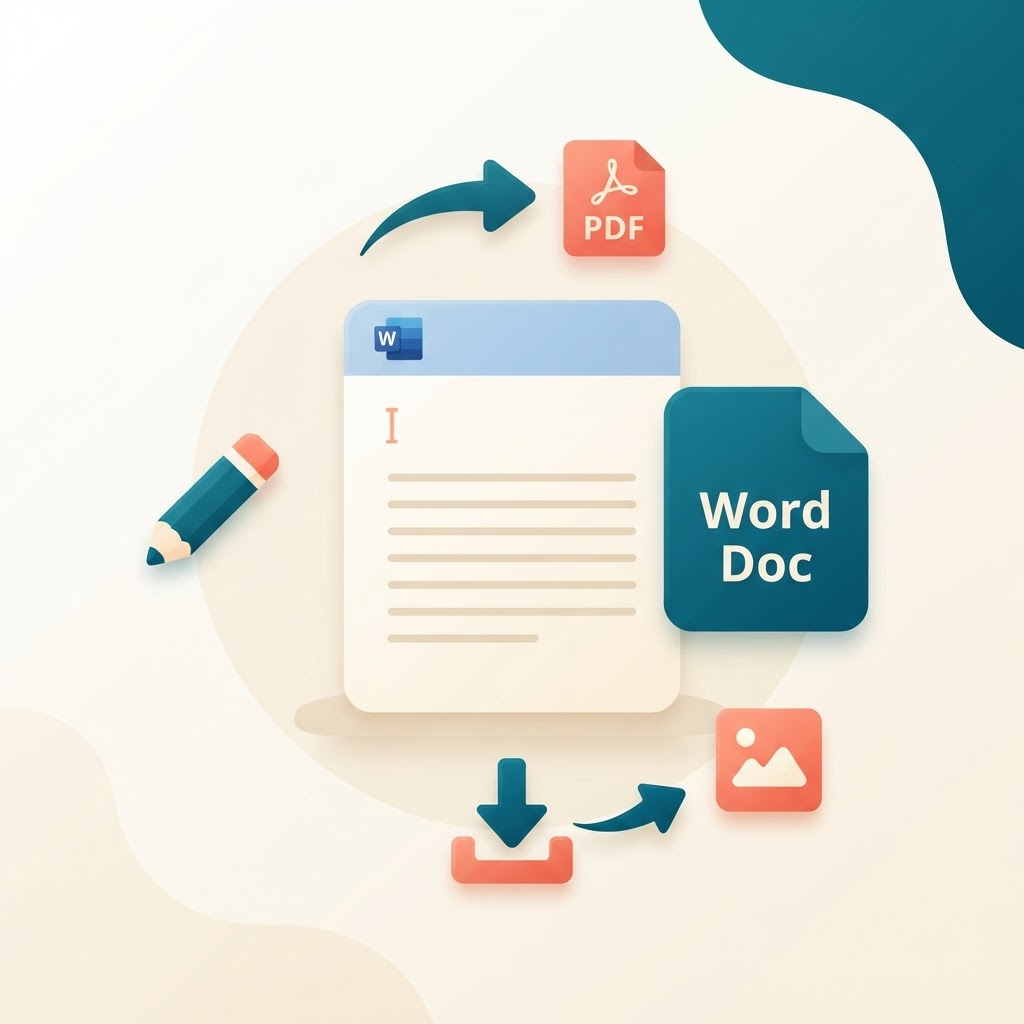
The .docx file is the most common way a document begins its life. It is the format your teacher expects the essay in, the format a recruiter opens your résumé in, and the format most office paperwork is written in. It is popular because it is editable — unlike a PDF, a Word document stores instructions about your text (fonts, headings, styles, spacing) rather than a fixed picture of the finished page, so you can always go back and change a word, move a paragraph or restyle a heading.
That flexibility is also why Word documents need a slightly different toolkit than PDFs. You are usually doing one of three things: editing the content, converting it into a fixed format like PDF so it looks the same for everyone, or turning it into an image to drop into a post or slide. This guide walks through all three, plus the common pitfalls and a few end-to-end workflows.
Editing a Word document without Microsoft Word
You do not need a paid copy of Microsoft Office to change a .docx file. The free online Word editor opens your document in the browser and lets you edit the text, formatting and layout directly — change wording, fix a typo, adjust headings, reorder paragraphs — and then download the result as a clean .docx again. It is the fastest way to make a quick change on a computer that does not have Office installed, or on a borrowed machine where you cannot install anything.
This matters most in three situations: you have been sent a document to review and want to make a couple of edits before sending it back; you are working on someone else's computer; or you simply do not want to pay for a full office suite to occasionally tweak a file. In all three, editing in the browser gets the job done in seconds.
Converting Word to PDF
This is the single most common thing people do with a Word file, and for good reason. When you send a .docx to someone else, there is no guarantee it will look the same on their screen: they may have different fonts installed, a different version of Word, or open it in an app that reflows the layout. Margins shift, page breaks move, and your carefully formatted résumé arrives looking wrong.
Converting to PDF solves this permanently. Word to PDF freezes your document into a fixed layout that looks identical on every device and prints perfectly. This is the right final step for anything you are submitting or sharing: résumés and cover letters, reports, invoices, assignments and official forms. The rule of thumb is simple — edit in Word, share as PDF.
Because PDF is a printing and sharing format, once your document is a PDF you can also use the full range of PDF tools on it: merge it with other documents, compress it to fit an upload limit, add a password, or drop in a signature. More on that in the workflow section below.
Converting PDF back to Word
The reverse is just as useful. If someone sends you a PDF and asks for changes, you need it back in an editable form. PDF to Word converts a PDF into a .docx file, reconstructing the paragraphs, headings, tables and images as best it can so you can edit in the Word editor or in Microsoft Word itself.
Keep expectations realistic here. Because a PDF stores a finished layout rather than editable structure, the conversion back to Word is a best-effort reconstruction. Simple, text-heavy documents convert beautifully. Complex ones with multiple columns, unusual fonts or heavy graphic design may need a little tidying up afterwards. For a document that started life in Word, converting back is usually clean; for a heavily designed brochure, expect to do some reformatting.
Turning a Word document into an image
Sometimes you do not want an editable document or a PDF at all — you want a picture. Maybe you are posting a certificate to social media, dropping a page into a presentation slide, or sending a quick preview in a chat where a document attachment would be clumsy. For this, convert the page to an image.
Word to JPG turns your document pages into JPG images, which are small and universally supported — ideal for photos and social posts. Word to PNG produces PNG images instead, which keep text crisp and support transparency — the better choice when the document has sharp text, lines or a logo you want to look pixel-perfect. As a quick guide: choose PNG for anything with text or diagrams, and JPG when you want the smallest file and a little softness is fine.
Word, PDF or image: which format should you send?
A lot of confusion disappears once you match the format to the goal. Here is the short version:
- Send .docx when the other person needs to edit it — a colleague collaborating on a report, or a teacher who marks up your essay with tracked changes.
- Send PDF when the other person should only read or print it and it must look exactly as you designed it — a résumé, an invoice, a signed contract, a final report. Use Word to PDF.
- Send an image when it needs to display inline without being opened — a social post, a slide, a chat preview. Use Word to JPG or Word to PNG.
Common Word document problems and how to fix them
“The formatting changed when I sent it”
This is almost always a fonts-and-versions problem, and the fix is to stop sending an editable format for a finished document. Convert to PDF with Word to PDF before sending, and the layout is locked in.
“The file is too big to email”
Word files bloat when they contain large embedded images. Convert to PDF first, then run it through Compress PDF to shrink it dramatically while keeping it readable. If the images themselves are the problem, resize them with the image tools before inserting them.
“I need to sign this Word document”
Word is not the right place to sign. Export to PDF with Word to PDF, then use Sign PDF to draw, type or upload your signature and place it exactly where it belongs.
“I only have a PDF but need to reuse the text”
Convert it with PDF to Word to get an editable document, or if you just want the raw words with no formatting, use PDF to Text.
End-to-end workflows
Most real tasks combine a couple of these tools. A few worked examples:
- Polishing and submitting a résumé. Write and format it in the Word editor, export it with Word to PDF so it looks identical everywhere, and if the job portal has a size limit, finish with Compress PDF.
- Editing a document someone sent as a PDF. Run it through PDF to Word, make your changes in the Word editor, then convert back with Word to PDF to return a clean final copy.
- Building a report packet. Write the report in Word, export it with Word to PDF, and use Merge PDF to attach supporting documents and appendices into one file.
- Sharing a certificate online. Convert the page with Word to PNG for a crisp image you can post directly, no attachment needed.
Frequently asked questions
Do I need Microsoft Word installed?
No. The online Word editor and every converter here run in your browser, so you can open, edit and convert .docx files on any device without buying or installing Office.
Is it free, and are my documents private?
Yes to both. There is no account, no payment and no watermark, and files are processed on your own device rather than uploaded, so private documents stay with you.
Will converting Word to PDF change how it looks?
No — that is the point. Word to PDF preserves your layout exactly and locks it so it can no longer shift on someone else's screen.
Can I edit a PDF as if it were a Word file?
You can convert it with PDF to Word and edit the result. For small tweaks that do not need full editing — adding a note, filling a field — it is often quicker to use Edit PDF directly.
Where to go next
You now know how to edit, convert and export Word documents without any paid software. Since Word and PDF go hand in hand, the natural next read is the companion complete guide to working with PDF files online, which covers merging, compressing, signing and protecting in depth. You can also jump straight to the PDF tools, file tools and image tools whenever you need them.