The complete guide to working with PDF files online
PDF is the format the world agrees on: a document that looks the same on every phone, laptop and printer. This guide walks through everything you can do with a PDF — converting, merging, splitting, compressing, editing, protecting and signing — and points you to a free, browser-based ShreePrati tool for each job. No software to install, no accounts, and nothing uploaded to a server you do not control.
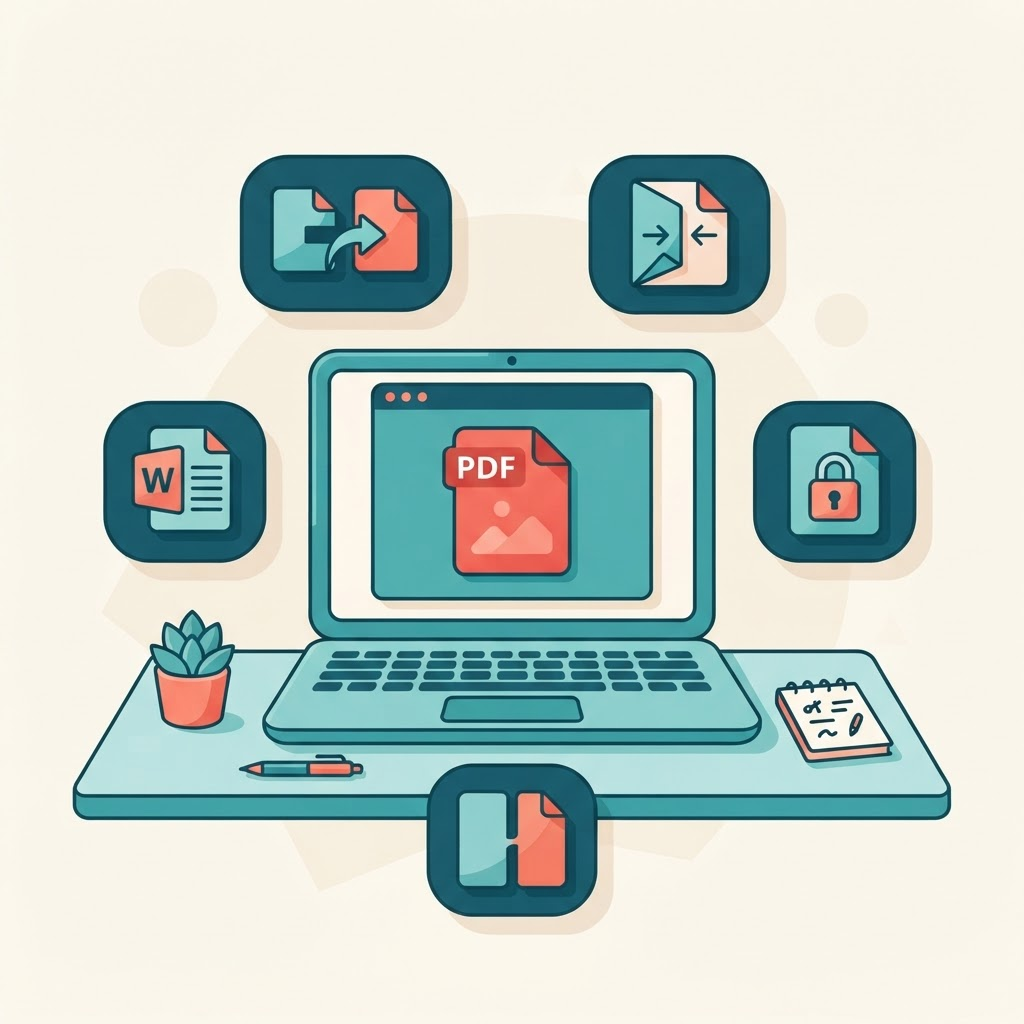
The Portable Document Format (PDF) was created so a document would look identical everywhere — the same fonts, the same layout, the same page breaks whether you open it on a decade-old office PC or a brand-new phone. That reliability is exactly why PDFs are used for invoices, contracts, résumés, government forms, scanned records and academic papers. It is also why they can feel frustrating: a format designed not to change is, by design, hard to change. The good news is that almost everything people struggle with — “how do I edit this?”, “how do I make it smaller?”, “how do I combine these?” — has a simple, free answer that runs right in your browser. This guide is a map of all of them.
If you would rather browse the full toolbox first, the PDF tools hub lists every option in one place. Otherwise, read on — the sections below follow the order most people actually need them in.
Why PDF is still the default document format
Before diving into tasks, it helps to understand what makes a PDF special, because it explains why some operations are easy and others need a dedicated tool. A PDF is essentially a snapshot of a finished document. Where a Word file stores editable instructions (“this paragraph uses this font at this size”), a PDF stores the rendered result — the exact position of every character and line. That is why a PDF prints perfectly and never reflows unexpectedly, and also why you cannot simply click into a paragraph and retype it the way you would in a word processor.
Because of this design, working with PDFs falls into a few broad categories: converting them into an editable format and back, changing the pages themselves (order, count, rotation), reducing file size, adding protection or signatures, and reading text out of scanned images. We will take each in turn.
Converting PDFs to and from other formats
Conversion is the single most common PDF task, and it goes in both directions. Sometimes you receive a PDF and need to edit its content; sometimes you have a finished document and need to lock it into PDF form so it looks the same for everyone.
PDF to Word (and Word to PDF)
If someone sends you a PDF and asks you to “make a few changes,” the fastest route is to turn it back into an editable document. Use PDF to Word to convert a PDF into a .docx file you can open and edit in Microsoft Word, Google Docs or the free online Word editor. The converter does its best to preserve paragraphs, headings, tables and images so you spend your time editing rather than rebuilding the layout.
When your edits are done — or when you have written something in Word that needs to be shared as a fixed, print-ready file — go the other way with Word to PDF. This is the right final step for résumés, cover letters, reports and anything you are emailing to someone who should see it exactly as you designed it.
PDF and spreadsheets
Financial data trapped in a PDF is painful to retype. If you have a PDF of a table, invoice or statement, PDF to Excel extracts the rows and columns into a spreadsheet you can actually calculate with. Going the other way, Excel to PDF turns a finished spreadsheet into a clean, shareable document — useful when you want people to read your numbers without accidentally editing them.
PDF and slideshows
Presentations travel well as PDFs because they always open, even without PowerPoint installed. Convert a deck to a handout with PowerPoint to PDF, or pull slides out of a PDF back into an editable deck with PDF to PowerPoint.
PDF and images
Sometimes you need a PDF as a picture — for a thumbnail, a social post, or to drop a single page into a chat. PDF to JPG and PDF to PNG turn each page into an image (PNG when you need crisp text and transparency, JPG when you want a smaller file). To build a PDF out of photos or scans instead, use Image to PDF, which stitches your pictures into a single ordered document.
PDF and plain text or web pages
Need just the words, with no formatting? PDF to Text pulls the raw text out so you can paste it anywhere. And if you want to archive a web page or turn HTML into a tidy document, HTML to PDF renders it to a clean, print-ready PDF.
Changing the pages: merge, split, and reorganise
A huge share of PDF frustration is not about content at all — it is about pages. You have three documents that should be one, or one document that should be three, or the pages are simply in the wrong order. These tasks are quick and completely lossless: they rearrange pages without ever re-compressing the content.
Merging several PDFs into one
When you are assembling an application, a report with appendices, or a scanned document that came through in pieces, Merge PDF combines any number of files into a single PDF in the order you choose. Drag the files into the order you want and download one tidy document.
Splitting one PDF into several
The opposite problem — a giant PDF where you only need part of it — is solved by Split PDF, which divides a document into separate files by page range. If you only need to pull out a handful of specific pages, Extract Pages keeps just the ones you select, and Remove Pages deletes the ones you do not want (blank scans, cover sheets, and so on).
Reordering, rotating and cropping
To rearrange pages by dragging them into a new sequence, use Organize PDF. Scans that came in sideways or upside down are fixed with Rotate PDF, and if a page has ugly margins or you only want part of it, Crop PDF trims it down. To make a long document easier to reference, Add Page Numbers stamps clean, consistent numbering across every page.
Making PDFs smaller
Large PDFs are a daily headache: email attachments bounce, upload forms reject them, and they are slow to open on a phone. Most of the weight comes from high-resolution images embedded in the file. Compress PDF reduces the size by optimising those images and stripping redundant data, letting you trade a little visual quality for a dramatically smaller file. For a document that is mostly scanned pictures, you can often cut the size by more than half while keeping it perfectly readable.
A useful habit: compress as the last step, after you have merged, reordered and edited everything, so you only optimise once. If your PDF is large because it contains full-page scans, compressing the source images first with the image tools before building the PDF can give you even better results.
Editing content inside a PDF
You do not always need to convert a PDF to change it. For quick fixes — adding a note, filling a form field, whiting out a typo, dropping in a logo — Edit PDF lets you annotate and add text or images directly on top of the existing pages. This is ideal when the layout is fine and you just need to add or cover something, rather than rewrite whole paragraphs.
Two related tasks come up constantly with official documents. Watermark PDF stamps text like “DRAFT” or “CONFIDENTIAL” across the pages, which is handy when you are circulating something that is not final. And when you need to hand a document to someone but keep certain information private, Redact PDF permanently blacks out the sensitive parts so they cannot be copied or recovered — very different from simply drawing a black box, which can often be removed.
Protecting, unlocking and signing
PDFs are the format of record for legal and financial documents, so security features matter. If you are sending something sensitive, add a password with Protect PDF so only people with the password can open it. If you have a file you own but it was locked with a password you now know, Unlock PDF removes that restriction so you can work with it freely.
Signatures are the other big one. Instead of printing, signing by hand and scanning back, Sign PDF lets you draw, type or upload a signature and place it exactly where it belongs — the fast, paperless way to return a contract. If the document is an interactive form, PDF Forms lets you fill in the fields directly and save your answers into the file.
Reading text out of scans with OCR
A scanned PDF looks like a document but is really a picture of one — you cannot select or search the text because, as far as the computer is concerned, it is just an image. Optical Character Recognition (OCR) fixes this. OCR PDF analyses the image, recognises the letters, and adds a searchable, selectable text layer underneath. After running it, you can copy quotes, search for a name, or convert the file to Word and edit it like any other document. This single step unlocks huge value from old scanned records and photographed pages.
Comparing and repairing PDFs
When two versions of a contract or report are floating around, spotting the differences by eye is error-prone. Compare PDF highlights what changed between two files so you can review edits with confidence. And if a PDF refuses to open or throws an error, it may be corrupted — Repair PDF attempts to rebuild the file structure and recover the content. For paper documents you want to digitise cleanly from a photo, Scan PDF straightens and enhances the image into a proper document scan.
A practical workflow: putting it all together
Real tasks usually chain several tools together. Here are three common end-to-end examples so you can see how the pieces fit.
- Assembling a job application. Write your cover letter in the Word editor, export it with Word to PDF, then use Merge PDF to combine it with your résumé and certificates. Finish with Compress PDF so the whole packet fits under the portal's upload limit.
- Returning a signed contract. Open the received file in Sign PDF, add your signature and date, and if the sender asked for a password, protect it with Protect PDF before emailing it back.
- Digitising old records. Photograph the pages, build a PDF with Image to PDF, make the text searchable using OCR PDF, and pull the data into a spreadsheet with PDF to Excel if you need to analyse it.
Frequently asked questions
Are these PDF tools really free?
Yes. Every tool linked in this guide is free to use with no account required and no watermark added to your output. You can browse them all from the PDF tools hub.
Are my documents safe?
The tools run in your browser and process files on your device rather than uploading them to a remote server, so sensitive documents like contracts and statements stay with you. For extra peace of mind when sharing, add a password with Protect PDF.
Why does my edited PDF look slightly different after converting?
Because a PDF stores a finished layout rather than editable instructions, converting it to Word and back is a best-effort reconstruction. Complex layouts with many columns or unusual fonts may shift a little. For light edits, prefer Edit PDF, which changes the file in place; convert to Word only when you need to rewrite substantial text.
What is the fastest way to make a PDF smaller?
Run it through Compress PDF as the last step. If it is still too big, the file is probably full of large scanned images — shrink those first with the image tools and rebuild the PDF.
Where to go next
You now have a complete mental model of what is possible with a PDF and which tool handles each job. Bookmark the PDF tools hub so the whole set is one click away, and explore the wider file tools and image tools for everything that lives alongside your documents. If your next task involves Word specifically, read the companion guide to working with Word documents online.